OpenStatement

Your statement, opened.

OpenStatement is a free iPhone app that turns your own bank and card activity into a plain monthly statement: what you've spent so far, what's due next, and where it all went. No account, no server of ours, and nothing collected.

Coming soon to the App Store · Free For iPhone with iOS 27 or later, in the US and Canada.

See how setup works See what it shows

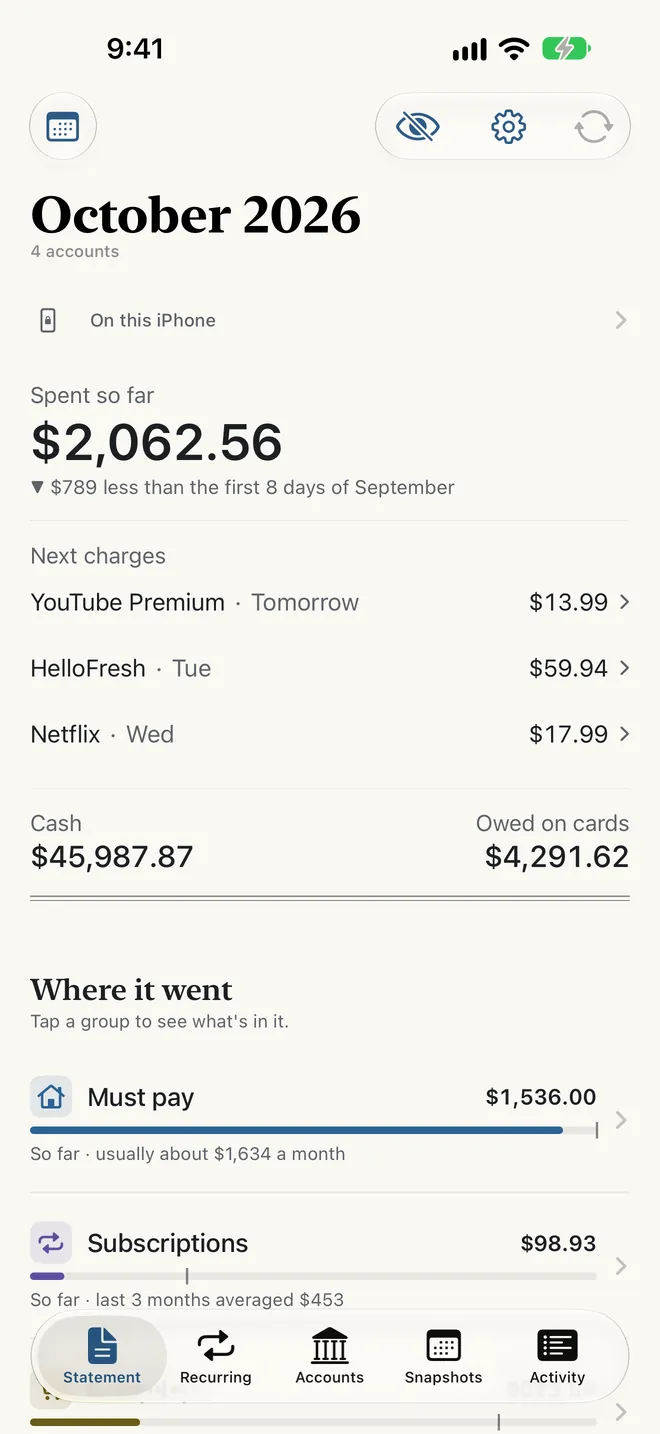
OpenStatement's Statement tab for October: spent so far, compared with the same point last month; the next three charges; cash and what's owed on cards; then Where it went, starting with Must pay.
The Statement tab, with the app's fictional sample data.

Statement summary

What OpenStatement asks of you, and what it sends us.

Account holder
You
Price of the app
Free
In-app purchases
None
Account to create
None
Analytics, ads, tracking
None
Network requests
Your SimpleFIN Bridge only
Sent to us
Nothing

A statement you can actually read

Each screen answers one question in plain words. These are the app's own screens, showing its fictional sample data.

On the Statement tab

See where it went, in four plain groups

Every payment out falls into Must pay, Subscriptions, Everyday or Everything else, each set against a usual month, so you can see what's running high. Tap a group for its categories and transactions.

  • Spent so far, set against the same point last month
  • Your next charges, your cash and what you owe on cards
  • A pace chart of this month against last
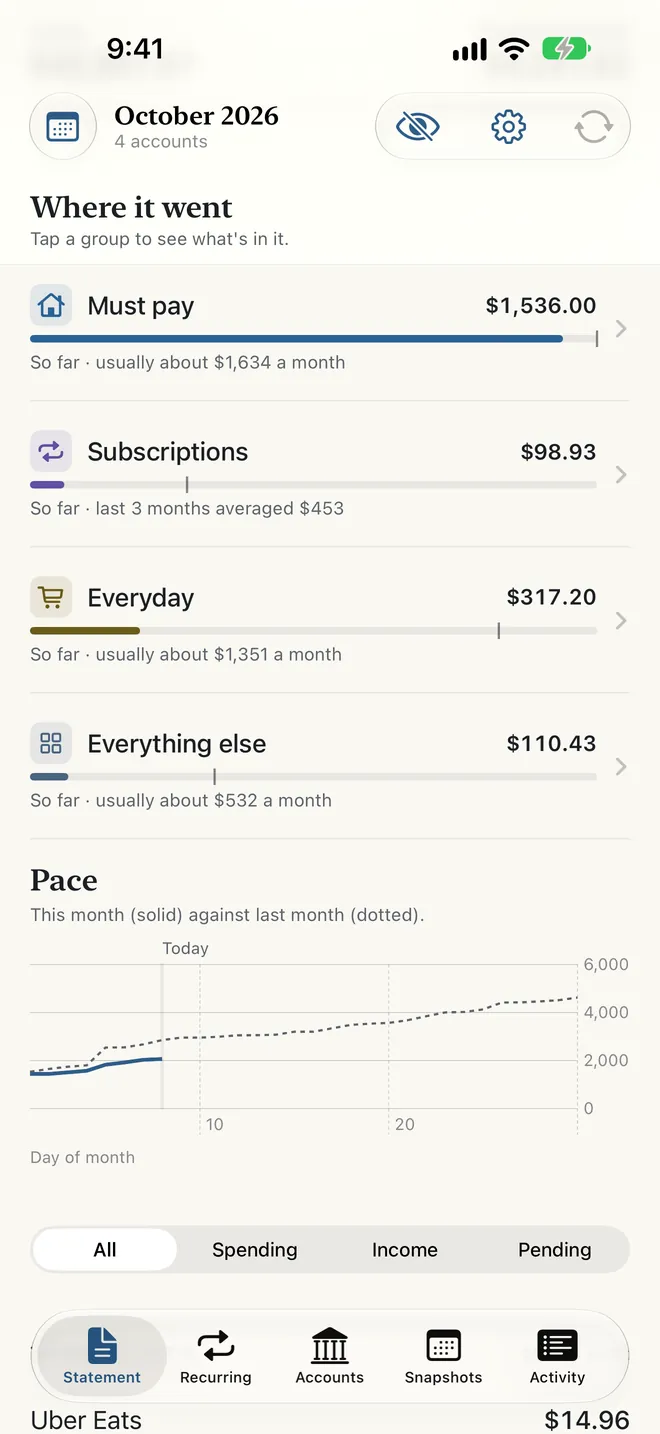
Where it went: Must pay, Subscriptions, Everyday and Everything else, each with a bar and a tick for a usual month, above the pace chart of this month against last.

On the Recurring tab

Every bill and subscription, found for you

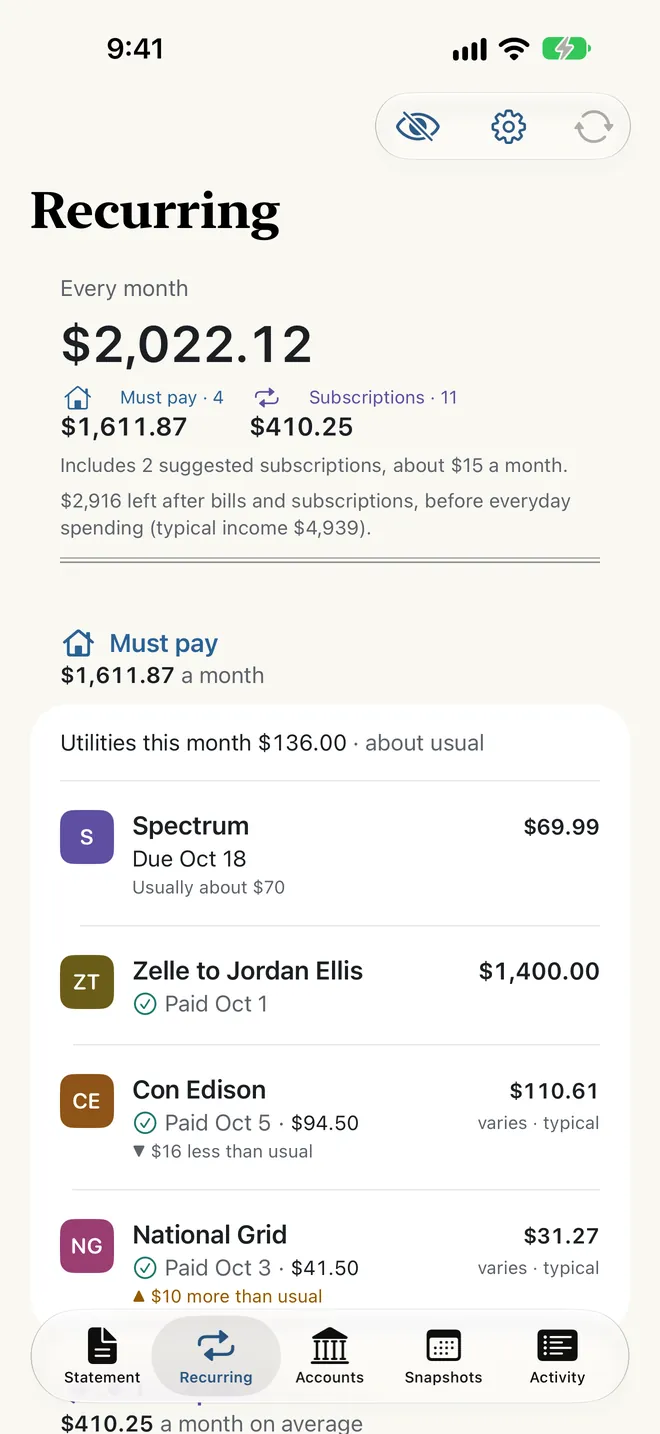
Repeating charges are spotted on your iPhone and suggested; confirm one with a tap. Recurring adds up what you must pay every month, against a typical month's income.

  • Your share of the rent, paid to the same person each month, counts as a bill
  • Utility bills marked more or less than usual, with the last 12 bills and the same month last year
  • Price rises flagged, and optional reminders before a subscription renews
The Recurring tab: what you pay every month, split into Must pay and Subscriptions, then the Must pay bills, with this month's utilities, a rent share paid to a person, and electricity and gas bills marked less or more than usual.

On the Snapshots tab

A forecast that shows its work

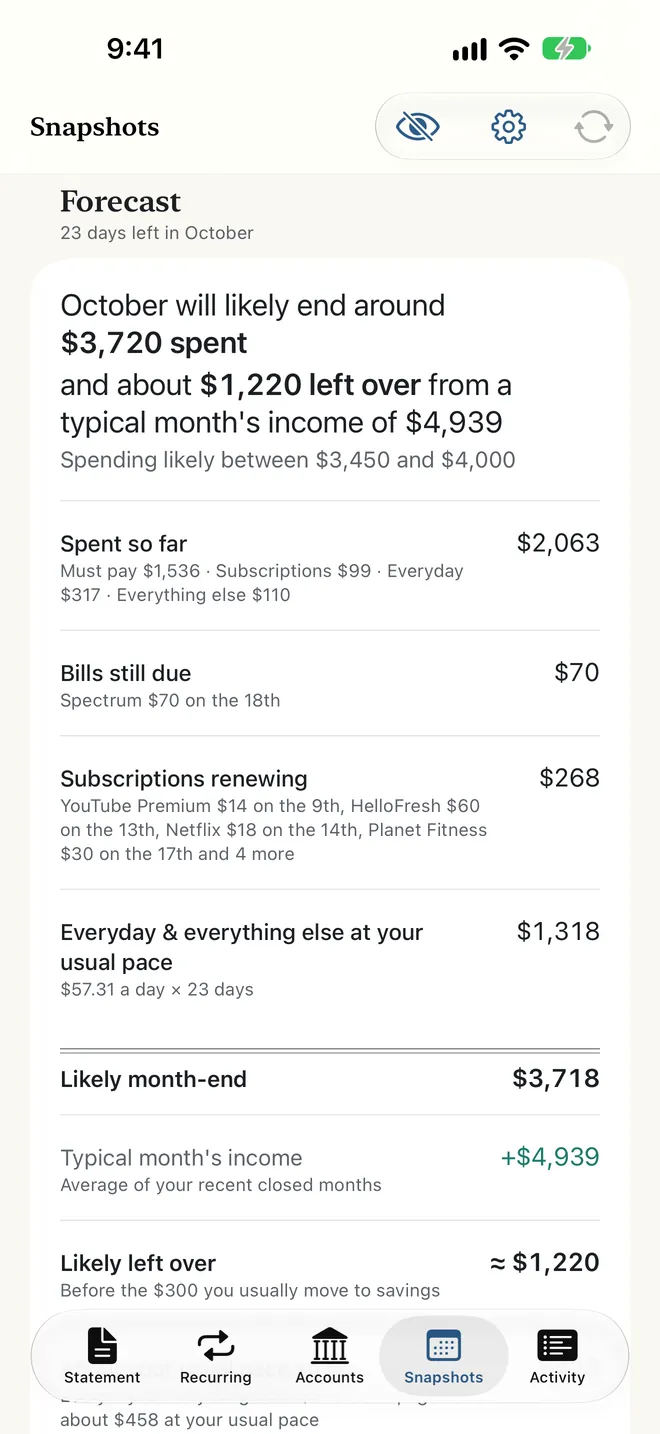
Each closed month is filed like a paper statement, and the last three sit side by side. For this month, the forecast gives a figure and a range, then lists the reasons: bills still due, subscriptions renewing and your usual everyday pace.

  • Worked out on your iPhone from your own history
  • No AI guesses the numbers
  • A charge that posts late is added as an adjustment line, never quietly changing a closed month
The forecast on the Snapshots tab: where October will likely end, a likely range, and the lines it's built from: spent so far, bills still due, subscriptions renewing, and everyday spending at the usual pace.

Data comes in. Nothing goes out.

There's no OpenStatement server and no account. The only requests the app makes go from your iPhone to SimpleFIN, for your own transactions. Import statements instead, and it makes none at all.

  1. Your bank
  2. SimpleFIN Bridge
  3. This iPhone
  • Lock with Face ID On by default. The app switcher shows a plain cover.
  • Discreet mode Hides every figure, for when people are looking.
  • Never in iCloud Backup Always left out of iCloud and computer backups.
  • No export Your statements stay in one place: this iPhone.
  • Erase Everything Removes it all in one step.
  • Network log Lists every request the app has made.

The trade-off: because nothing goes to iCloud Backup and there's no export, a new iPhone starts empty. Connect SimpleFIN again (it fetches recent months) or import your statements. Read the privacy policy.

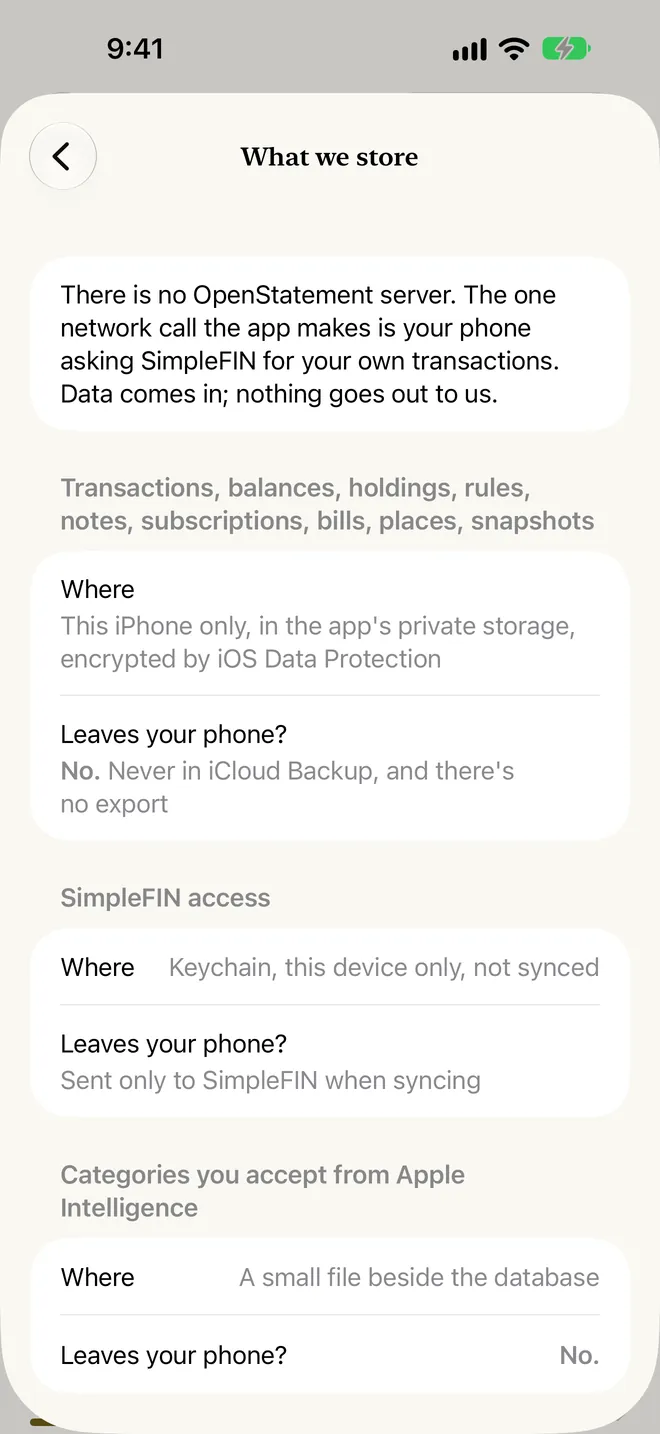
What we store, from the app's Settings: there's no OpenStatement server; transactions and balances stay in the app's private storage on this iPhone, never in iCloud Backup and with no export; SimpleFIN access stays in the Keychain on this device only.
What we storeThe same table is in Settings, so you can check it in the app.

Everything in version 1.0

Free, with no in-app purchases and nothing to unlock.

  • StatementSpent so far against the same point last month, your next charges, your cash and what you owe on cards, then Where it went. Turn your iPhone sideways to read the month as a printed statement table.
  • RecurringBills and subscriptions found on your iPhone; confirm each with one tap. Each shows its next charge, its yearly cost and any price change, with optional reminders before it renews.
  • Utility billsElectricity, gas, water, internet and phone, each against its usual (“▲ $38 more than usual”), a ledger of the last 12 bills, and the same month last year. Your bank sends one total, so a bill that covers both gas and electricity stays one bill.
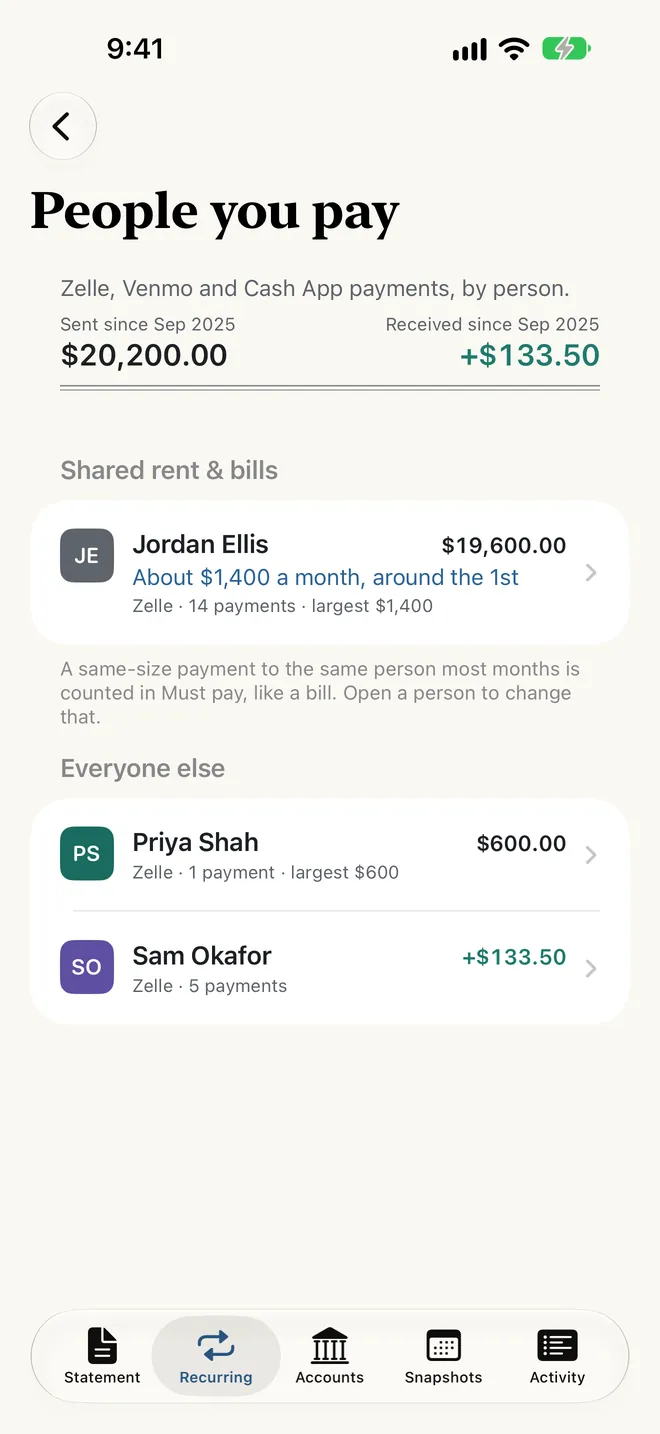
  • People you payZelle and other transfers by person. A payment of about the same size to the same person, month after month, counts as a shared bill in Must pay.
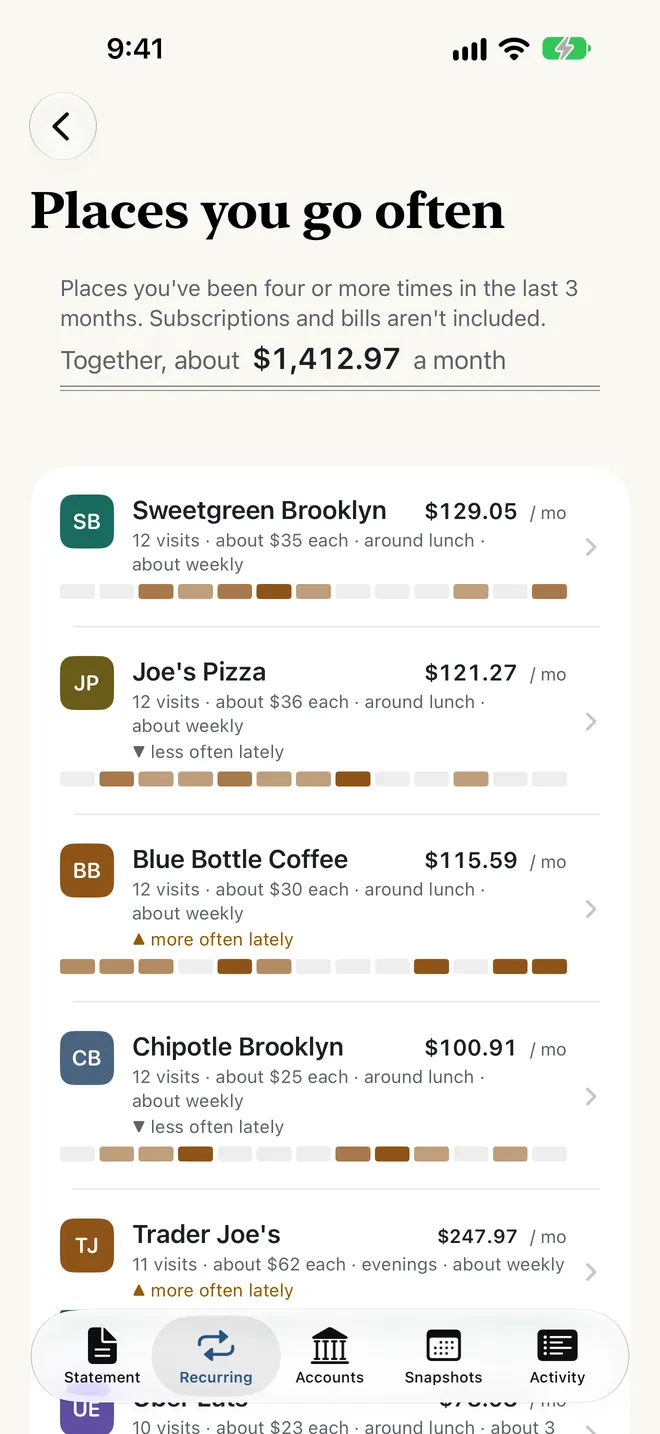
  • Places you go oftenPlaces you've been four or more times in three months, how often you go (“mostly Saturdays”, “about weekly”) and what they add up to. Worked out from your transactions; OpenStatement doesn't use your location.
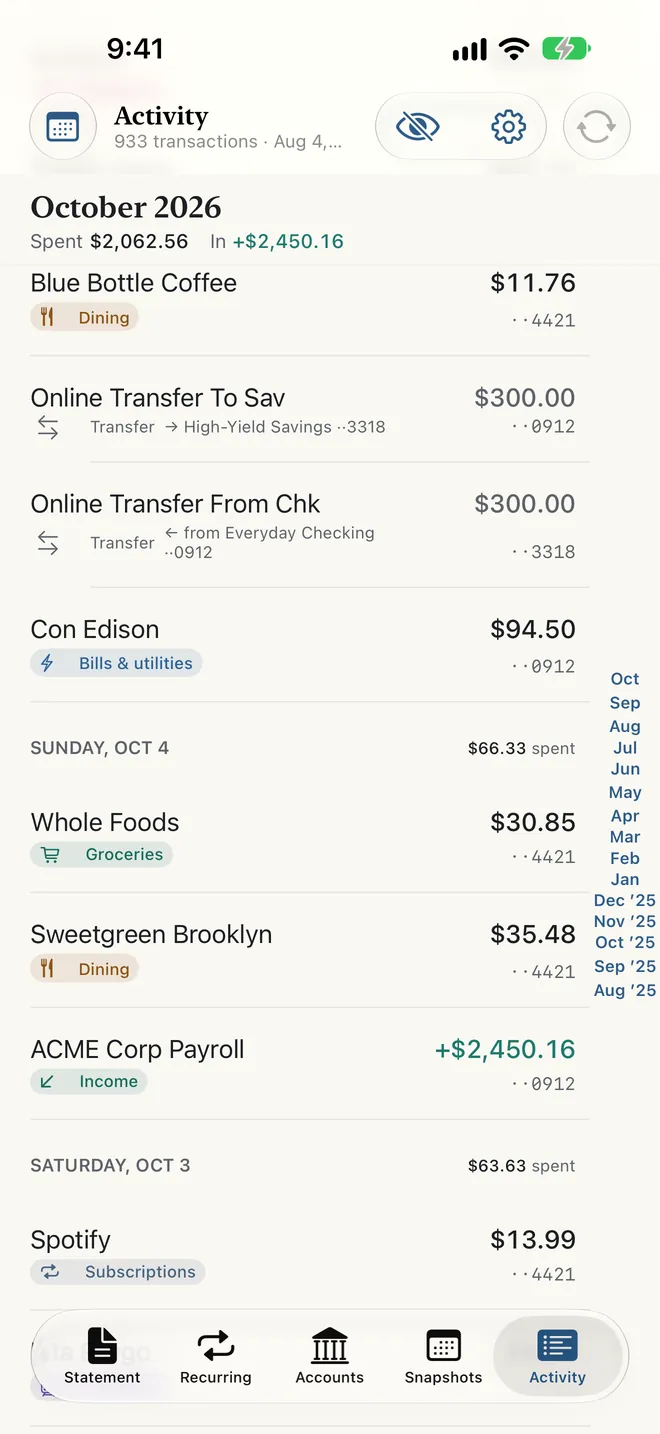
  • ActivityOne feed for every account, newest first. Drag the months on the right edge to jump to any month, search by merchant, amount or note, and filter by group or account.
  • Snapshots and a forecastEach closed month filed like a paper statement, the last three side by side, and a forecast for this month that shows its work.
  • Sort with Apple IntelligenceOptional. On an iPhone that supports Apple Intelligence, it suggests categories for merchants nothing else recognises. It runs on your iPhone only, and you review every suggestion before it's applied.
  • SecurityFace ID lock, Discreet mode, never in iCloud Backup, no export, Erase Everything, and a Network log of every request.
  • Your wayStart your month on payday (any day from the 1st to the 28th); Paper, Carbon, Ledger or System themes; and your currency, such as CAD.
  • Help built inA short welcome tour after setup, and Help in Settings explains every screen, with a glossary.

Quick setup

Two ways in, one step at a time, with no technical know-how needed. Start with either; you can add the other later from Accounts.

Open OpenStatement and choose how your statement arrives

The first screen reads “Your statement, opened. Nothing leaves your phone.” Tap Continue, and the app asks how your statement should arrive. There are three answers:

  • Connect automatically: new transactions arrive by themselves, through SimpleFIN Bridge (way B).
  • Import statements: files from your bank's website, always free (way A).
  • Look around first: the fictional sample data, with nothing to connect (try it first).
The first choice, as the app shows it in the US. In Canada, the first card says SimpleFIN has its own account instead of a price.

Import a statement from your bank's website

Always free. Works with any bank that lets you download your activity.

  1. Download your activity from your bank's website. Sign in to your bank's website and look for Statements, Activity or Download. Pick a date range and a format: CSV (a spreadsheet), or OFX/QFX, sometimes called “Quicken” or “Money”. Chase customers can also use their PDF statements.
  2. Put the file where your iPhone's Files app can see it. Downloaded it in Safari on your iPhone? It's already in Files, under Downloads. On a computer? AirDrop it to your iPhone, or save it to iCloud Drive.
  3. In OpenStatement, choose Import statements and pick the file. On the first screen, or later from Accounts › + › Import statement. The file is read on your iPhone and never uploaded.
  4. Check the preview, then tap Import. OpenStatement recognises the layouts of many large US banks and card issuers. For any other layout, match the columns: Date, Description, and Amount (or Debit and Credit). Choose an account, or make a new one, then tap Import.

Tip: import two or three months. Bills need two months of history and subscriptions three, so more appear as the months add up. Importing the same file again skips duplicates.

Chase PDF statements: first turn on Allow Chase PDF statements in Import in Settings › Your data, and check the rows before importing.

The preview before anything is imported. The figures here are made up.

Connect automatically with SimpleFIN Bridge

New transactions arrive by themselves. SimpleFIN Bridge is an independent, read-only service that you sign up for and pay directly: on 8 October 2026 their site listed US$1.50 a month or US$15 a year, plus tax (check their site for the current price). OpenStatement doesn't sell SimpleFIN and earns nothing from it.

  1. Create a SimpleFIN Bridge account. In Safari, go to beta-bridge.simplefin.org and sign up. You pay SimpleFIN there, not through the App Store.
  2. Link your banks there. Choose your bank and sign in to it on SimpleFIN's site. You link your banks at SimpleFIN, so OpenStatement never sees or stores a bank password.
  3. Create a setup token for OpenStatement. In SimpleFIN, create a new connection for OpenStatement and copy the setup token it gives you, a long string of letters and numbers. Each token works once.
  4. Paste it into OpenStatement. Choose Connect automatically, tap Paste (or type the token), then Connect. Your accounts appear, and OpenStatement reads your recent history.

The checklist in the app remembers where you were, so you can switch to Safari and back. Your bank may email you when SimpleFIN is accessed from a new network; that's expected. Later, you can manage or cancel SimpleFIN at any time.

The setup checklist, as the app shows it in the US. In Canada, step 1 reads “Sign in to your SimpleFIN Bridge account”.

What you'll see first

  1. Your accounts The accounts that came in, each with a switch to count it or leave it out, and a first total: what you're committed to every month in bills and subscriptions.
  2. Two quick choices Lock with Face ID (on by default), and whether to be reminded before subscriptions renew. Then tap Open my statement.
  3. The welcome tour Six short pages: your month at a glance, where it went, every month, one feed for everything, snapshots and the forecast, and how it all stays on this iPhone. Skip it if you like, and replay it from Settings › Help.
  4. The Statement Spent so far, your next charges, your cash and what you owe on cards, then Where it went. With SimpleFIN, pull down or tap Sync to fetch new transactions.
  5. Recurring The bills and subscriptions found so far. Suggested ones have a dashed outline: tap Confirm if it's yours, or swipe left and choose Not a subscription.
The Statement tab.
StatementHow this month is going
The Recurring tab.
RecurringWhat you pay every month

Try it first with sample data

Not ready to connect anything? Choose Look around first on the first screen. You get a fictional “Sample Bank” with Everyday Checking, a Rewards Card, a Travel Card and High-Yield Savings, so you can try every screen; it's what every screen on this page shows. It's removed automatically the first time you connect SimpleFIN or import a statement, and Accounts has Remove sample data.

You stay in control

OpenStatement is built so you stay in control of your own finances, with no middleman company in between. It's open to anyone.

  • No middleman of ours

    We run no server and keep no copy of your data. Your iPhone fetches your transactions itself.

  • No account with us

    There's nothing to sign up for and nothing to sign in to.

  • The bank connection is yours

    You hold the SimpleFIN account yourself: you choose which banks to link, and you can switch off OpenStatement's access there at any time. (SimpleFIN and its bank-connection partner see your bank data to provide their service, under their own privacy policy.) Or skip it and import your statements.

  • Leave whenever you like

    Cancel SimpleFIN on their site, use Erase Everything, delete the app. There's no account to close, and we hold nothing of yours.

Our goal is to open-source OpenStatement in the future.

What it isn't: OpenStatement shows your own data. It doesn't move money, hold funds, offer credit or give financial advice. There are no budgets, scores or streaks: just your statement, in plain words.

Questions people ask

Is it really free?

Yes. OpenStatement is free, with no in-app purchases, subscription or ads, and importing statements is always free. The only optional cost is SimpleFIN Bridge, for automatic sync, and you pay that to SimpleFIN, not to us. Price and availability

Will it work with my bank?

If your bank's website lets you download your activity as CSV or OFX/QFX, you can import it: presets cover many large US banks and card issuers, and a column mapper reads any other layout. For automatic sync, SimpleFIN Bridge covers US and Canadian institutions; you'll see whether yours is there when you link your banks. Importing statements

How do I cancel SimpleFIN?

At SimpleFIN Bridge. You bought it from them, not through the App Store, so it isn't in your iPhone's subscriptions and we can't cancel it. In OpenStatement, Settings › Manage or cancel SimpleFIN opens their site. Managing or cancelling SimpleFIN

What happens when I get a new iPhone?

OpenStatement starts empty, because your data never goes to iCloud Backup and there's no export. Connect SimpleFIN again (it fetches recent months) or import your statements. A new iPhone, backups and export

Is OpenStatement open source?

Not today; the code isn't public. Our goal is to open-source OpenStatement in the future.

All questions and answers